
Hi Everyone
Welcome to my first blog post. In this post I will cover testing of Intune CA and MAM policies inside the new Azure portal to enable BYOD access to Exchange Online. In other words, users have not enrolled their phone with an MDM provider but still want access to Exchange Online e-mail.
Lab Setup
I have the following set up inside Azure. I am testing a scenario where an organisation already has Office 365 and is now introducing EM+S to test BYOD, perhaps with limited EM+S licenses and are performing a pilot:
- Exchange Online
- Blue User with Office 365 E3 & EM+S E3 licenses
- Green User with only Office 365 E3 license
- Samsung Galaxy S4 running Android 4.4.2
I created the following policies in the new Azure portal for Intune:
- A Conditional Access (CA) policy that only allows the Outlook app and other MAM enabled Microsoft apps
- A Mobile Application Management (MAM) policy that defines a 4 digit PIN must be used in Outlook (Note not on the device but in the Outlook app itself) when Outlook is opened to view company e-mail.
Both policies are deployed to an existing group that the organisation has already set up in their environment, which contains their Office 365 users and is called…. Office 365 Users 🙂 These policies can be created by opening up the new Azure portal and opening to the Intune App Protection blade

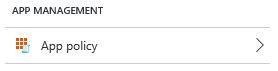
MAM and CA policies are configured from the following menu items respectively:

I also have the following enabled in the tenant:
- Outlook 365 MDM enabled
- Intune added as an MDM provider
Here is the configuration in a simple drawing:

As you can see both users will each be testing e-mail access through the native Android E-Mail app, as well as the Microsoft Outlook app (which they downloaded themselves from the Google Play store). Both phones are personal and not registered with any MDM.
What I expect is that the user with the EM+S license (Blue User) will be able to access e-mail through the Outlook app by entering a PIN as they will obtain Intune policies. The non EM+S user (Green User) should not be allowed to access any e-mail as they cannot get Intune policies and so will need to register their phone with Office 365 MDM in order gain access through Android’s app or Outlook.
Scenario 1
The results of the tests are as follows:
Blue User
- Native App: Prompted to enroll in MDM. Access denied without enrollment.
- Outlook App: Prompted to create a PIN for Outlook, then access granted
Green User
- Native App: Prompted to enroll in MDM. Access denied without enrollment.
- Outlook App: Access granted with no PIN.

Wait what? Why is Green User allowed access to e-mail with no protections in place? For some reason Intune CA applies to this user but Intune MAM does not (due to no EM+S license), which then defaults to Allow. The net effect is we now have an un-managed phone and e-mail application with full access to corporate e-mail.
Scenario 2
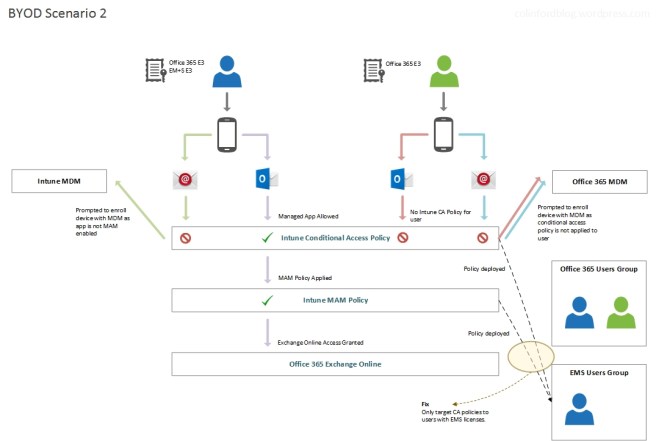
To fix this I deployed both Intune policies to only the user with the EM+S license. I created a new EMS Users group, added only the Blue User in there and re-deployed the CA and MAM policies to it.
Success, this now results in the scenario I’m after:
Scenario 3
To further simplify this and reduce chance of error, the Office 365 and EM+S licenses are now deployed to appropriate groups rather than the individual users. This ensures that if a user obtains CA and MAM policies through the EMS group, they will also obtain an EM+S license.

Conclusion
We can obtain the result we were after but it is still prone to administrator error. Ideally Intune CA policy should not allow a user without an EM+S license to use Outlook based on their license status alone, or Intune MAM should default to deny if it does not apply due to no EM+S license. But hopefully this is something that will be changed, or there is a way to make it work that way that I am not aware of (which is always possible!!)
If you enjoyed this post and want some more details on how to set this environment up for yourself let me know and I’ll blog about it 🙂 The good news is that it can all be done without any local infrastructure, all you need is time and patience. Enjoy!


Reblogged this on System Center.
LikeLike