
One of the security issues that domain joined/Active Directory Joined (ADJ) devices bring with them is the tight network connectivity that they require to Domain Controllers (DCs). ADJ and likewise Hybrid Azure AD Joined (HAADJ) devices require 1000’s of ports open to DCs in order to function, and these same ports are also used for AD administration.
In this post I’ll show you how its technically possible to block only administration connectivity to AD if you are using all Azure AD Joined (AADJ) devices. Now a 100% migration to AADJ devices is not a reality for most organizations because legacy applications, macros, scripts and many other things built up in an organization over time don’t always work with them. However, if you are looking into moving devices over to an untrusted network as part of a Zero Trust strategy and implementing Zero Trust Network Access, it may be worth considering whether you can/should migrate to AADJ where possible.
I know I’m using the “old” Azure names for things here, but they are still used a lot as I write this. If you want to see the new Entra names, go and visit https://aka.ms/aadrebrandfaq
Microsoft Secure Administration Guidance
Microsoft provide guidance on securing privileged access, which involves segregating standard user and privileged user access in an end-to-end chain from the device itself up to the administration interface of the system as shown below.
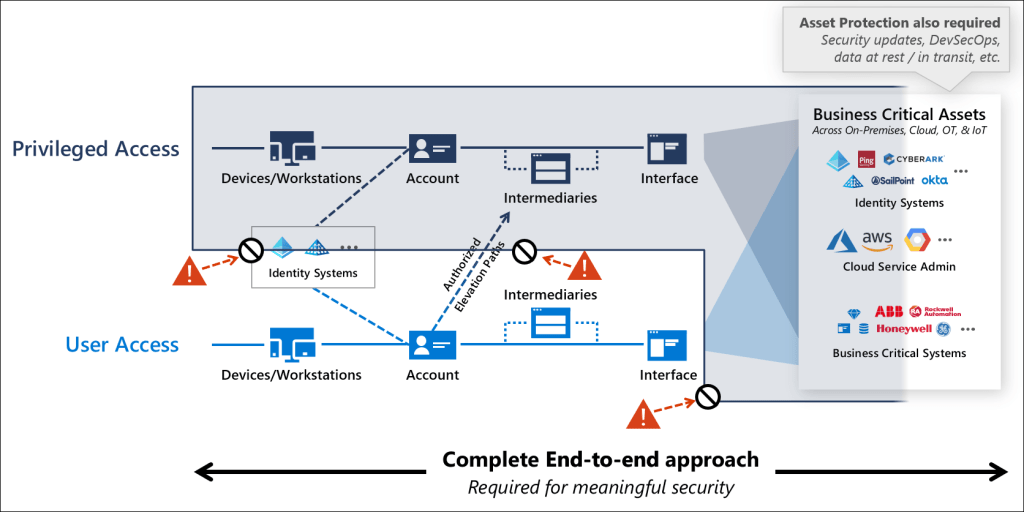
Let’s see if we can apply this guidance to Active Directory using AADJ devices.
Separate Standard and Privileged Devices and Accounts
We’ll start on the left with Devices and Accounts. Let’s assume we have separate accounts for regular day to day use and for AD administration, this is very common as it is easy to implement. We’ll call our privileged account LAB1\dcadmin.
Now let’s assume we have separate devices as well, a regular device for day to day use and a Privileged Access Workstation (PAW), this is much less common and more commonly involves jump hosts. But in this guidance a jump host would be an Intermediary, so let’s assume that we have a separate device. Our regular device will be called AADJ-5546.
We should prevent the privileged account from logging onto the regular device and visa-versa so that we don’t leak credentials across the boundary. We can apply User Rights Assignment policy to Deny logins following this guidance:
- Deny access to this computer from the network
- Deny log on as a batch job
- Deny log on as a service
- Deny log on locally
- Deny log on through Remote Desktop Services user rights
Unfortunately, not all of these user rights are available in Intune, notably Deny logon on as a batch job, and Deny log on as a service as shown in the UserRights Policy CSP documentation we can see these two are limited to Windows Insider Preview currently.

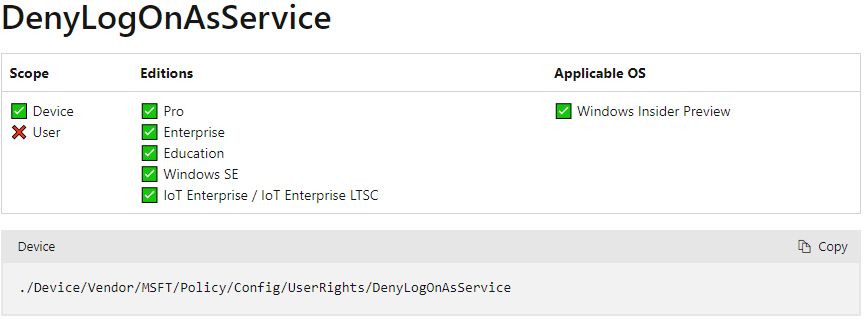
No problem, we can add it manually just for testing. No, this doesn’t work because the device is an AADJ device, so it can’t resolve the username through the gpedit.msc GUI.
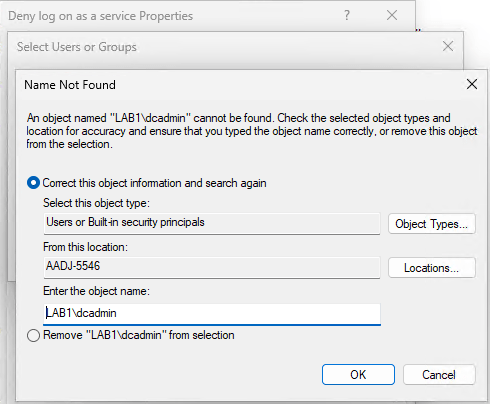
We can get around this by bypassing the GUI and exporting the local User Rights policy using secedit.exe, adding the SID of the LAB1\dcadmin user account to the correct entries and then re-importing again with secedit.exe.
Here we run the export to the file userrights.inf

Next, we open userrights.inf with Notepad and add the SID to the following entries, note that Guest account exists by default in two of the entries so we want to preserve that.
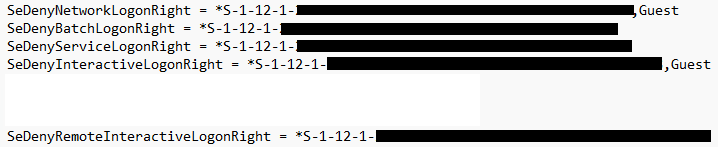
Now we save the file and import again using secedit.exe

Voila, we can see the user across all five entries in gpedit.msc navigating to Computer Configuration > Windows Settings > Security Settings > Local Policies > User Rights Assignment

Let’s try to use the credential on the device to see if it’s working testing a console login, remote/RDP login and then a Run as.



Securing the Active Directory Interface
Moving further along the chain to the right we have the Interface. Securing the administration interface to AD is hard because regular devices need access to the same ports to function. Suppose an attacker already has stolen privileged credentials, had gained access to a standard device and now wants to use them to get to AD.
Even though we can no longer login or run a process as dcadmin on the standard device we can still directly bind to LDAP. In this example we use ldp.exe launched as the standard logged on user then bind using our stolen dcadmin credentials to get privileged access.
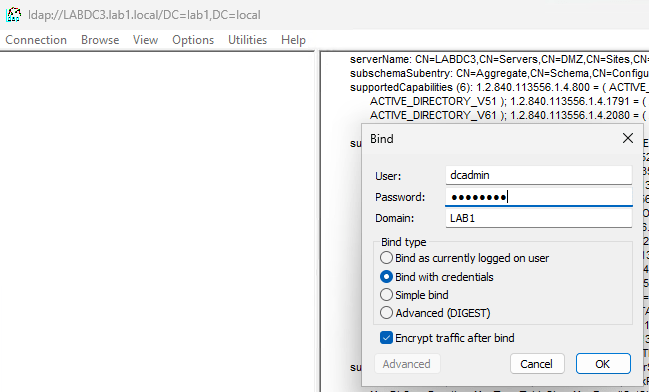
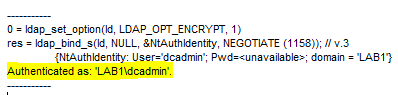
Even binding as a standard user allows browsing of the directory for recon purposes. So, can we stop this? You can’t block these ports at the network level because ADJ/HAADJ devices need the same ports that administrators need, but can you block these ports for an AADJ device? Let’s see…
First, we look at the minimum ports an AADJ device needs to domain controllers. If you have on-premises apps and file shares still tied to AD authentication (you do), AADJ devices can SSO to these using some info from your AAD tenant, which itself obtains from Azure AD Connect. The workflow is documented here. Essentially if an AADJ device needs a Kerberos ticket to authenticate to an on-premises resource it will look for a domain controller to get it. If we fire up WireShark we can take a closer look at the process.
In this example the standard user Intune1 is logged into a standard AADJ device accessing an SMB share on a server SCCM2 in my domain LAB1. We have the following IP addresses:
- 10.0.0.23 – Standard workstation we are accessing the share from
- 10.0.0.22 – SMB share server
- 10.0.0.3 – Domain controller
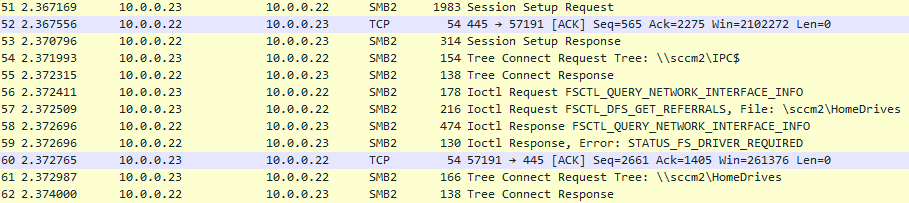
On first attempt to access the SMB share our workstation queries DNS (on the DC) for the IP address of the SMB server, it then performs a TCP handshake with the SMB server and SMB protocol negotiation.

The workstation needs a Kerberos token to authenticate, so it queries DNS for _kerberos SRV records to locate a domain controller. Once it receives a response it performs an LDAP ping to the domain controller returned (more on this later).

If the domain controller responds to the LDAP ping it obtains the needed Kerberos tickets…

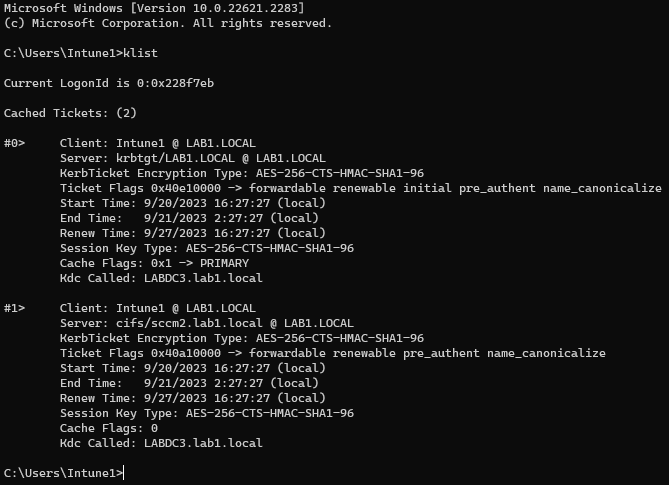
If we run a klist on the workstation as the standard user, we can see the TGT and SMB Kerberos tickets obtained from LABDC3.
We can use the WireShark Protocol Hierarchy tool to view a summary of which ports were used to communicate to the DC. First we apply a display filter to only show comms to our DC’s IP address (10.0.0.3).

We now run the tool to see a summary of the network communication between our workstation and the DC.

Here we can see three ports we used: DNS (UDP), LDAP (UDP), Kerberos (TCP). LDAP over UDP, also called Connectionless LDAP or CLDAP, has a special purpose in Active Directory called LDAP ping and is documented here. Essentially, it has very limited functionality and only used to discover if a domain controller is active and its capabilities, LDAP over TCP is required for everything else as documented here including administration.
So, let’s purge our Keberos tickets on the workstation and move the client device over to our untrusted “zero trust” network, which only allows DNS (UDP), LDAP (UDP), Kerberos (TCP) to domain controllers to see if we can still obtain Kerberos tickets and connect to the SMB share but block out any possible administration connection.
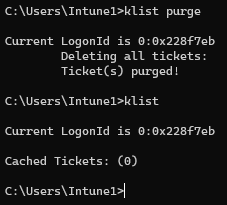
Accessing the SMB file share again reveals fresh Kerberos tickets assigned from the same DC.

The SMB connection also still works. Let’s try some administration and hopefully it’s blocked.
We’ll open an LDAP connection using LDP. We get a failure, which makes sense because TCP based LDAP is blocked from this network.

Let’s try a connectionless LDAP connection to force UDP.
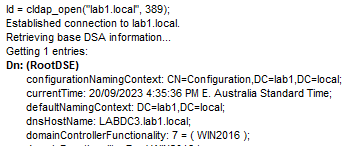
This succeeds, and we get the LDAP ping RootDSE information dumped out, which is fine and expected. Now let’s try a Bind as our privileged account to see if we can do some administration.

Whoops, blocked because this requires LDAP over TCP. All the Bind type options presented produce the same result. Let’s try to run AD Users and Computers as the standard user to see if we can do some recon from there (remember dcadmin is blocked from launching processes so that user can’t launch anything, but even if it wasn’t it would result in the same errors below)
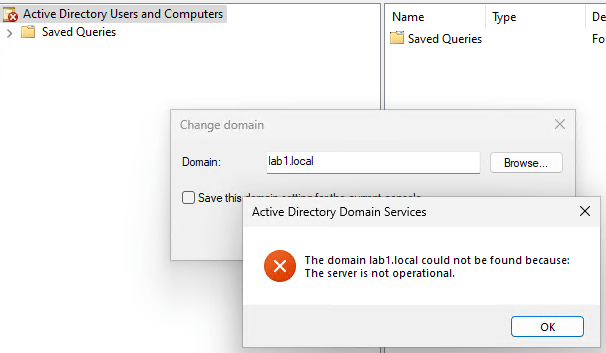
So, it looks like we can’t do any AD administration or recon from our untrusted network which is great.
Testing the same process using a Windows Hello PIN login in a Cloud Kerberos trust configuration produced the same result, the only difference was that the Kerberos TGT was obtained during the login process and not when first accessing a resource.
Summary
In practice this would not be straightforward to implement in an enterprise obviously, because people run other things on domain controllers, applications can talk LDAP on domain controllers over TCP, applications can be incompatible with AADJ devices etc… etc… But this presents an interesting opportunity to consider if you are planning to migrate your internal devices onto an untrusted network as part of your Zero Trust strategy. If you have ADJ/HAADJ devices on these networks you’re likely going to have to give a lot of network line of sight to domain controllers including admin ports. Now might be a good time to start assessing what doesn’t work with AADJ devices to see if it can be remediated to make way for them and make ADJ/HAADJ the exception rather than the dominant deployment model.
 Colin Ford Blog